PicCollage: Photo Video Editor
- 4.7
- Rating
- 100.00M
- Installs
- Free
- Price

 Analysis by App-foxy
PicCollage: Photo Video Editor is the kind of photography app I open when a normal photo feels too plain but a full desktop editor would be excessive. I can turn several pictures into a shareable collage, start from a template, or make something more personal with a little arranging and text. It feels designed for quick visual projects rather than painstaking image correction, and that distinction matters when choosing between it and a traditional photo editor.
After spending time with it, I see the main appeal clearly: it reduces the distance between having a handful of pictures and producing a finished card, memory board, or social post. The app is free to install, carries an Everyone age rating, and comes from Cardinal Blue Software, Inc. Its popularity is easy to understand, with a 4.7 average from around 1.8 million ratings and over 100 million installs. Those figures do not make every design decision perfect, but they do reflect how approachable the basic experience is.
How the editor feels in everyday mobile use
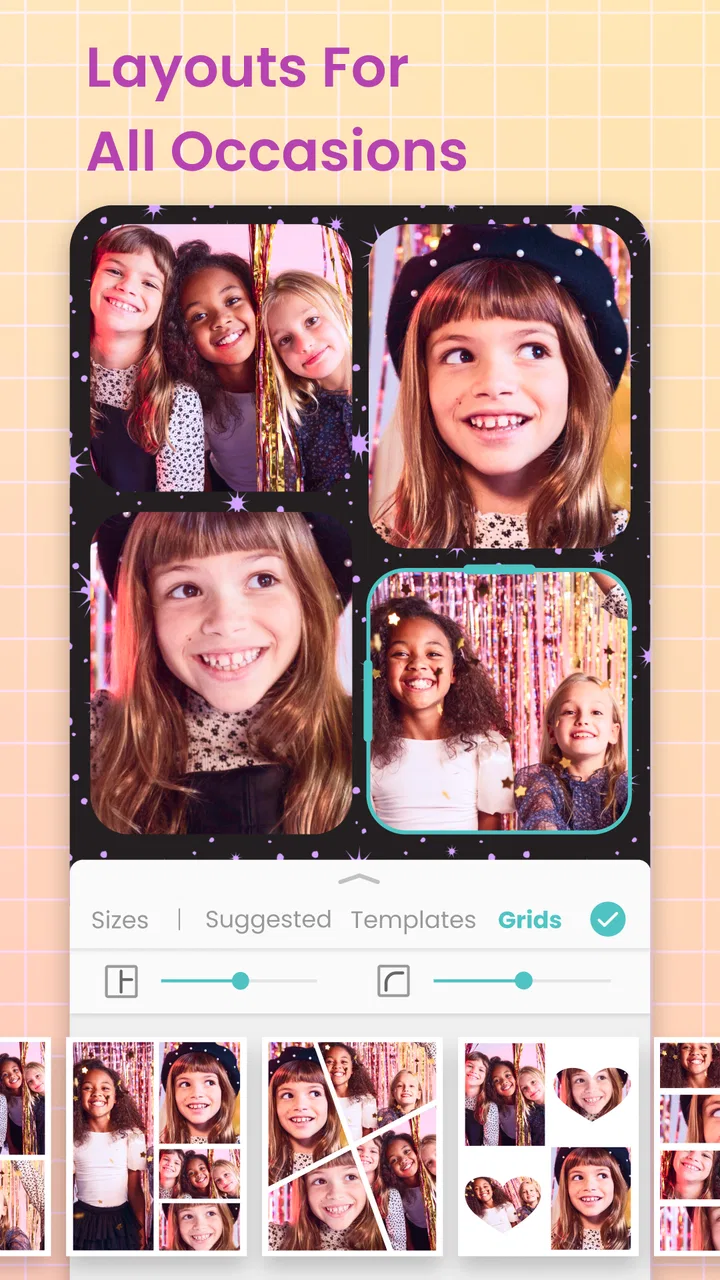
The first thing I notice is that PicCollage thinks in layouts rather than isolated photographs. Instead of asking me to correct exposure, remove distractions, or fine-tune color, it asks how several images should sit together. That makes it especially useful for birthdays, trips, school projects, family updates, and quick seasonal cards. The store summary specifically highlights Valentine’s Day cards, picture collages, grid layouts, and templates, but I find the same approach useful for ordinary moments throughout the year.
You May Also Like

 Blood Strike: 2.5 Anniversary
Blood Strike’s Loadouts Turn Every Drop Into a Tactical Gamble
A close look at Blood Strike’s custom loadouts: how fast access to signature weapons reshapes its battle royale rhythm, rewards preparation, and narrows the gap between fights.

 Pandora - Music & Podcasts
Pandora’s Music Is Easy to Start, but Harder to Recover
Pandora’s strength is its low-effort path from a seed to a station. Its weak spot is how much confidence it asks you to place in connection, setup, and quiet recovery.

 8 Ball Pool
 Is Built on Rivalries, Rematches, and Routine
A close look at the rivalries, rematches, shared routines, and unanswered safety questions that turn a quick pool match into a persistent mobile community.

 Samsung Music
’s Quiet Strength Is Playing What You Already Own
Its reach comes less from spectacle than from dependable access to a personal library. That simplicity is both the app’s strongest retention engine and its ceiling.

 AccuWeather: Weather Radar
AccuWeather Review: A Quick, Clear Forecast for Everyday Decisions
For everyday plans, the best forecast is the one you can understand quickly. AccuWeather makes rain timing, radar, and local conditions easy to act on, with a few trade-offs.

 Hill Climb Racing
Why Hill Climb Racing Still Turns Crashes Into One More Run
A tiny car, a bumpy hill and one more upgrade: Hill Climb Racing keeps resurfacing because its simple chaos makes every near-miss feel personal.
More From Our News Desk
View All News


A realistic example is a weekend visit with friends. I might have a group photo, a food picture, a street detail, and one amusing candid. Rather than posting them separately or spending time building a composition from scratch, I can place them in a grid and give the set a clearer story. The result is not necessarily artistic in a gallery sense, but it is more coherent than a random sequence of uploads.
The template-led workflow is also helpful when I am short on ideas. A blank canvas can make a simple project feel like design work; a prepared arrangement gives me a starting point. I can then decide whether the template suits the photos, replace the images, and adjust the balance. This is one of the app’s strongest qualities for casual users: it offers structure without requiring me to understand design terminology.
At the same time, templates can make different projects feel visually similar. If I want a highly individual poster, a carefully controlled scrapbook page, or a brand asset with exact spacing, I would rather use a more advanced design tool. PicCollage is at its best when speed and friendliness matter more than complete control.
What changes when the connection is unreliable
Connectivity shapes the experience in a practical way. The most network-sensitive moments are likely to be the parts that depend on discovering or loading fresh creative material, such as browsing available templates or preparing a project for sharing. When the connection is slow, the app can feel less immediate because the browsing experience becomes part of the work instead of a quick source of inspiration.
I would therefore avoid beginning an important card or presentation while relying on an unstable signal. If I am in a moving vehicle, at a crowded event, or using a weak public network, I prefer to choose my images and settle on a simple direction before I start experimenting. That reduces the chance that a design session turns into repeated waiting.
This does not mean the app is only useful with a perfect connection. The core idea of arranging photos on a phone remains convenient, but the smoothness of the overall workflow depends on how quickly content can load and how easily the finished result can move to the next step. I treat connectivity as part of the editing environment rather than as an invisible background detail.
One useful habit is to separate creation from discovery. When I already know which photos I want and have a clear idea for the layout, I spend less time browsing and make fewer requests for new visual material. That makes a short editing session feel more predictable. If I am still searching for inspiration, I allow extra time and avoid treating the app as a tool for urgent last-minute work.
Small-screen editing and the best mobile situations
PicCollage makes sense on a phone because the projects it targets are visual and compact. I can work directly from pictures already on the device, see the composition as it develops, and make a result intended for another phone screen or a quick share. The experience suits spontaneous work better than a laptop-centered workflow.
I particularly like the format for making a visual recap after an event. Instead of choosing one photograph and leaving the rest unused, I can combine a few images into a single piece. That is helpful when the story depends on variety: the people, the place, and one small detail that would not deserve a separate post.
There is a trade-off on a small display. Moving elements around is convenient, but precise alignment can become tiring when several images, decorative elements, or text compete for space. I find that simple layouts usually look better than trying to fit everything into one canvas. Leaving breathing room is more effective than shrinking every photo until the collage becomes difficult to read.
For that reason, I recommend deciding on a visual priority before editing. If the group photo is the important image, it should receive the largest or clearest position. Supporting pictures can be smaller. This sounds obvious, but template-based editing can encourage me to fill every available space. A collage becomes easier to understand when the arrangement has a clear focal point.
The app is also a reasonable choice for users who do not want to learn a complicated interface. Someone making a first photo collage can begin with a grid and adjust from there. A more experienced creator may appreciate the speed for informal projects, while still reaching for another app when exact typography, layered composition, or detailed retouching is required.
Recovering from mistakes without losing the project
Quick editing is only enjoyable when mistakes are easy to correct. In a collage, the common problems are not dramatic technical failures; they are practical ones. A photo may crop awkwardly, the chosen arrangement may leave an important face too close to an edge, or text may compete with a busy background. My approach is to make one change at a time and check the whole composition after each major adjustment.
I also avoid treating the first template as a commitment. It is better to regard it as a draft. If the pictures do not fit naturally, changing the structure early is less frustrating than forcing every image into a layout that was never suitable. This is an important difference between a fast app and a careless workflow: speed helps only when I am willing to discard a weak starting point.
Connectivity can add another layer of uncertainty during recovery. If a browsing or sharing step takes longer than expected, I do not immediately assume that the project itself has been lost. I pause, check whether the app has returned to a stable state, and avoid repeatedly tapping the same action. Repeated attempts can make it harder to tell whether something is processing or whether the first action failed.
For projects that matter, I recommend finishing with a deliberate review of the complete image before leaving the editor. I look for faces hidden by a crop, text that is too close to the border, and small details that disappear when the whole collage is viewed at once. This final check is more valuable than endlessly decorating the design. A simple result with readable images usually survives sharing better than a crowded one.
The app’s free entry point makes experimentation comfortable, but the presence of in-app purchases means I would still pay attention when exploring premium-looking materials or optional additions. The listed purchase range runs from $0.99 to $59.99 per item. I would not start a project by assuming every visible creative choice is included; I would first establish the layout and only then decide whether an optional element is worth paying for.
Using it carefully when mobile data matters
PicCollage is a visual app, so data-conscious use begins with the images I choose and the way I browse. Large collections, repeated template exploration, and frequent sharing can all make a session more demanding than a simple text-based task. When I am on limited mobile data, I prefer to prepare a small selection of photos first rather than scrolling through my entire library while also exploring designs.
A practical workflow is to create a shortlist in the phone’s photo library, then open PicCollage with a specific goal. For example, I might select four pictures for a travel recap instead of opening the editor with several hundred possibilities. This saves time, reduces distraction, and makes it easier to judge whether the finished collage tells a coherent story.
I also avoid repeatedly rebuilding the same project while testing minor variations. It is more efficient to decide whether the overall layout works, then make focused changes to the crop, spacing, or text. If I am comparing two directions, I keep the comparison simple: one clean grid against one template-based design. That gives me a meaningful choice without turning the session into endless browsing.
Sharing is another moment where I prefer a stable connection and a little patience. Before sending a finished card, I check the recipient and the final image rather than rushing through the last step. A collage often contains several personal photos, so the convenience of quick sharing should not replace a careful look at what is actually included.
For privacy-minded users, the most sensible habit is to choose images intentionally. I would not add a whole camera roll just because the app makes selection easy. Picking only the pictures needed for the project keeps the workflow cleaner and limits accidental inclusion of unrelated images. That is good organization as well as good digital hygiene.
Where it beats familiar alternatives, and where it does not
Compared with a standard photo editor, PicCollage is more immediately useful for combining images. A conventional editor is usually better when the goal is one polished photograph: correcting color, adjusting light, or performing detailed retouching. PicCollage wins when the final result needs several images arranged together with a presentable structure.
Compared with a blank canvas design app, it feels less intimidating. I do not need to build every element from nothing, which is valuable for a quick greeting card or a family montage. The trade-off is that a specialized design app may offer stronger control over typography, layers, alignment, and export-oriented work. If I were preparing something for professional printing or strict brand consistency, I would choose the more controlled tool.
Compared with simply posting a photo album, a collage gives me a single visual message. That is useful when I want the viewer to see a relationship between images rather than swipe through them separately. However, a collage also reduces the size of each photograph. If every image deserves to be seen clearly, an album or slideshow may communicate better.
The app is not the right choice for someone seeking advanced retouching, precise graphic production, or a fully offline-first workflow. It is also less suitable for users who dislike template browsing or who want complete control over every pixel. Its strength is the middle ground between an unedited camera roll and a professional design environment.
Who should try it and how to get better results
I would recommend it to families, students, casual creators, travelers, and anyone who regularly wants to turn several phone photos into one finished image. It is especially friendly for people who have a clear occasion in mind but do not want to learn a complex editor. The free price makes it easy to test, while the Everyone rating keeps it broadly accessible.
My best practical advice is to start with fewer images than you think you need. Four strong photos can tell a better story than ten weak ones. Choose one focal image, use supporting pictures to add context, and leave enough empty space for any text. If the composition feels crowded on the phone, it will usually feel even more crowded after sharing.
I would also make the connection part of the plan. Browse templates when the signal is dependable, edit from a prepared shortlist when data is limited, and avoid starting a time-sensitive card at the exact moment you need to send it. Those small decisions make the app feel much more reliable because they match the workflow to the conditions.
The current version is 7.23.11, and the minimum operating system is iOS 11. That makes checking device compatibility worthwhile before expecting the newest experience on an older phone. The app itself remains positioned as a free photography tool, but optional purchases should be considered when a project depends on particular premium material.
My final view on the connected experience
PicCollage: Photo Video Editor succeeds because it turns a scattered group of photographs into something understandable with very little ceremony. I like it most when I need a quick card, a compact event recap, or a friendly collage that looks more intentional than a standard photo dump. Its templates and grid-focused approach remove much of the blank-page anxiety that slows down other design tools.
Its limitations are just as clear. It is not a replacement for detailed photo correction or professional layout software, and the browsing and sharing parts of the experience are more comfortable with a dependable connection. Users on limited data should prepare their photo selections and avoid unnecessary template exploration. People who need exact control should accept that convenience comes with constraints.
Overall, I see it as a practical mobile companion rather than an all-purpose editor. When I have a small visual story to tell and want the result quickly, it is one of the easier options to reach for. When the project demands precision, extensive retouching, or a carefully managed production workflow, I would switch to a specialized alternative. For everyday collages, though, its balance of structure, speed, and accessibility makes it worth trying.
FAQs for PicCollage: Photo Video Editor
01What features does PicCollage: Photo Video Editor offer?
PicCollage: Photo Video Editor provides a variety of features including customizable templates, backgrounds, and stickers to enhance your photos and videos. Users can easily create collages, add text, apply filters, and utilize freehand drawing tools. The app also supports video editing, allowing for a creative blend of media elements.
02Is PicCollage free to use, or does it require a subscription?
PicCollage offers both free and premium versions. The free version provides basic editing tools and access to many templates and stickers. However, to unlock advanced features, remove ads, and gain access to exclusive content, a subscription is required. Subscriptions can be monthly or annually, providing flexibility based on user preference.
03How user-friendly is PicCollage for beginners?
PicCollage is designed to be intuitive and user-friendly, making it accessible for beginners. The interface is straightforward, with easy-to-navigate menus and drag-and-drop functionality. Tutorials and guided prompts help new users get started quickly, ensuring that even those with no prior editing experience can create professional-looking collages and videos.
04Can PicCollage be used offline or is an internet connection required?
PicCollage can be used offline for creating and editing projects, as most of the tools and features are available without internet access. However, an internet connection is necessary to download additional content like new templates and stickers or to share your creations directly to social media platforms.
05What platforms is PicCollage: Photo Video Editor available on?
PicCollage is available on both Android and iOS platforms, making it accessible to a wide range of smartphone and tablet users. The app can be downloaded from the Google Play Store for Android devices and the Apple App Store for iOS devices, ensuring compatibility with a variety of operating systems and devices.
Pros
- Easy-to-use interface for quick edits.
- Wide variety of templates available.
- Supports both photo and video collages.
- Regular updates with new features.
- Integration with social media platforms.
Cons
- Contains in-app purchases for premium features.
- Some ads can be intrusive.
- Limited free sticker options.
- Requires internet for full functionality.
- Can be resource-intensive on older devices.

PicCollage: Photo Video Editor
Gallery